
JDoodle AI MCP
JDoodle AI MCP (Model Context Protocol) enables AI assistants such as ChatGPT and Claude to directly connect with JDoodle AI and build complete applications through conversational prompts.
Once connected, you can generate full projects, modify files, preview applications instantly, and deploy without leaving your AI assistant.
Overview
JDoodle AI MCP is a remote MCP server that allows compatible AI platforms to interact with JDoodle AI’s live development environment.
After connecting, your AI assistant can:
- Generate full frontend and backend projects
- Create and update project files automatically
- Maintain project state across multiple prompts
- Provide a live preview URL
- Deploy and publish applications directly
JDoodle AI MCP transforms AI from a one-time code generator into a continuous conversational app builder.
Supported Platforms
JDoodle AI MCP works with MCP-compatible platforms, including:
- ChatGPT Web
- Claude Web
- Claude Desktop
- Claude Code
- Gemini CLI
- Codex
- Le Chat (Mistral AI)
Note: Some platforms require a paid plan to use custom connectors.
Prerequisites
Before connecting JDoodle AI MCP, ensure you have:
- A valid JDoodle AI account
- JDoodle AI Client ID
- JDoodle AI Client Secret
- A supported AI platform account
- ChatGPT account
- Claude Pro or paid plan for custom connectors
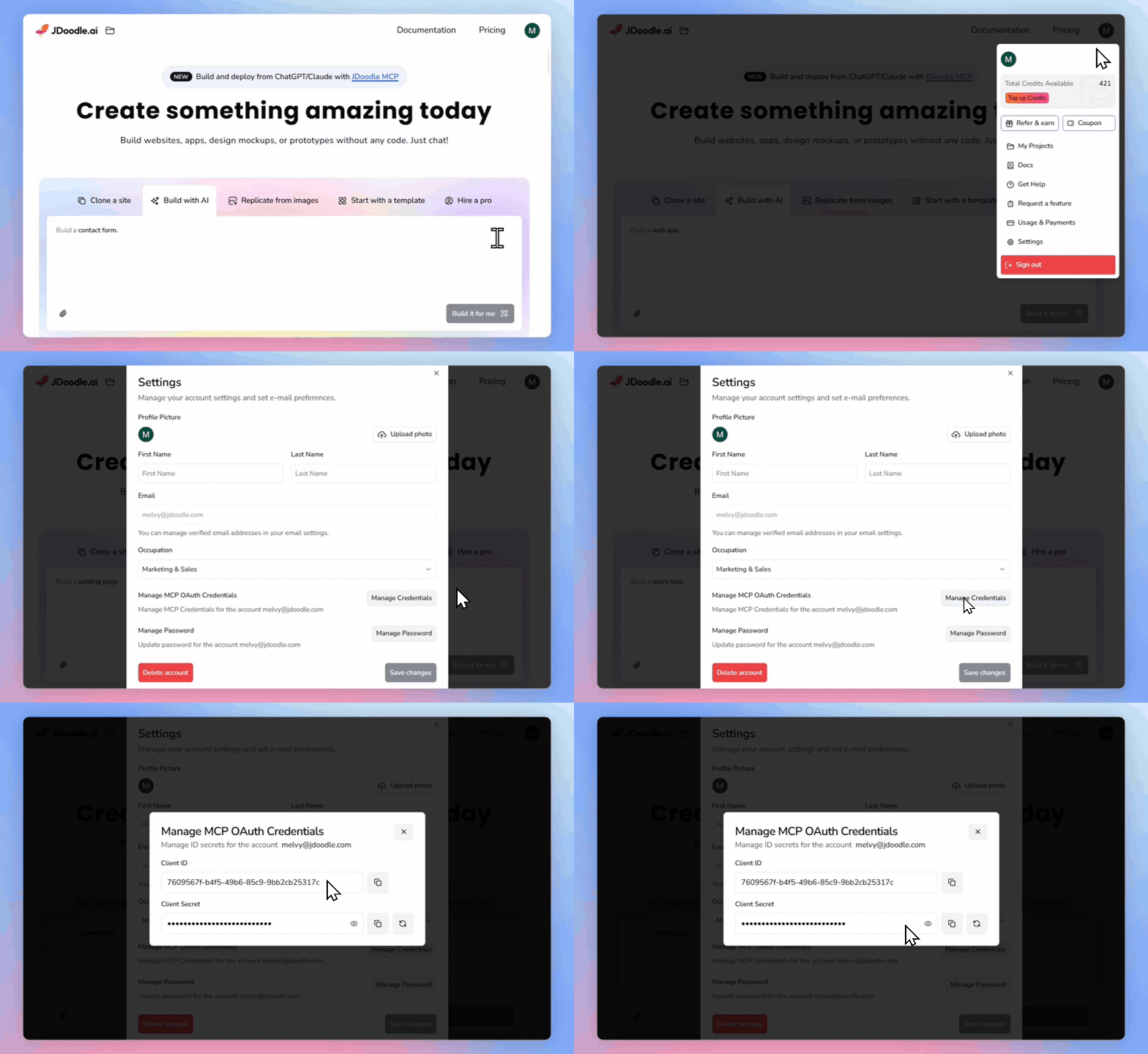
To obtain credentials in JDoodle.ai
- Log in to JDoodle AI
- Click on your profile icon
- Go to Settings
- Select Manage Credentials
- Copy the Client ID and Client Secret
Connecting JDoodle AI MCP with ChatGPT (Web)
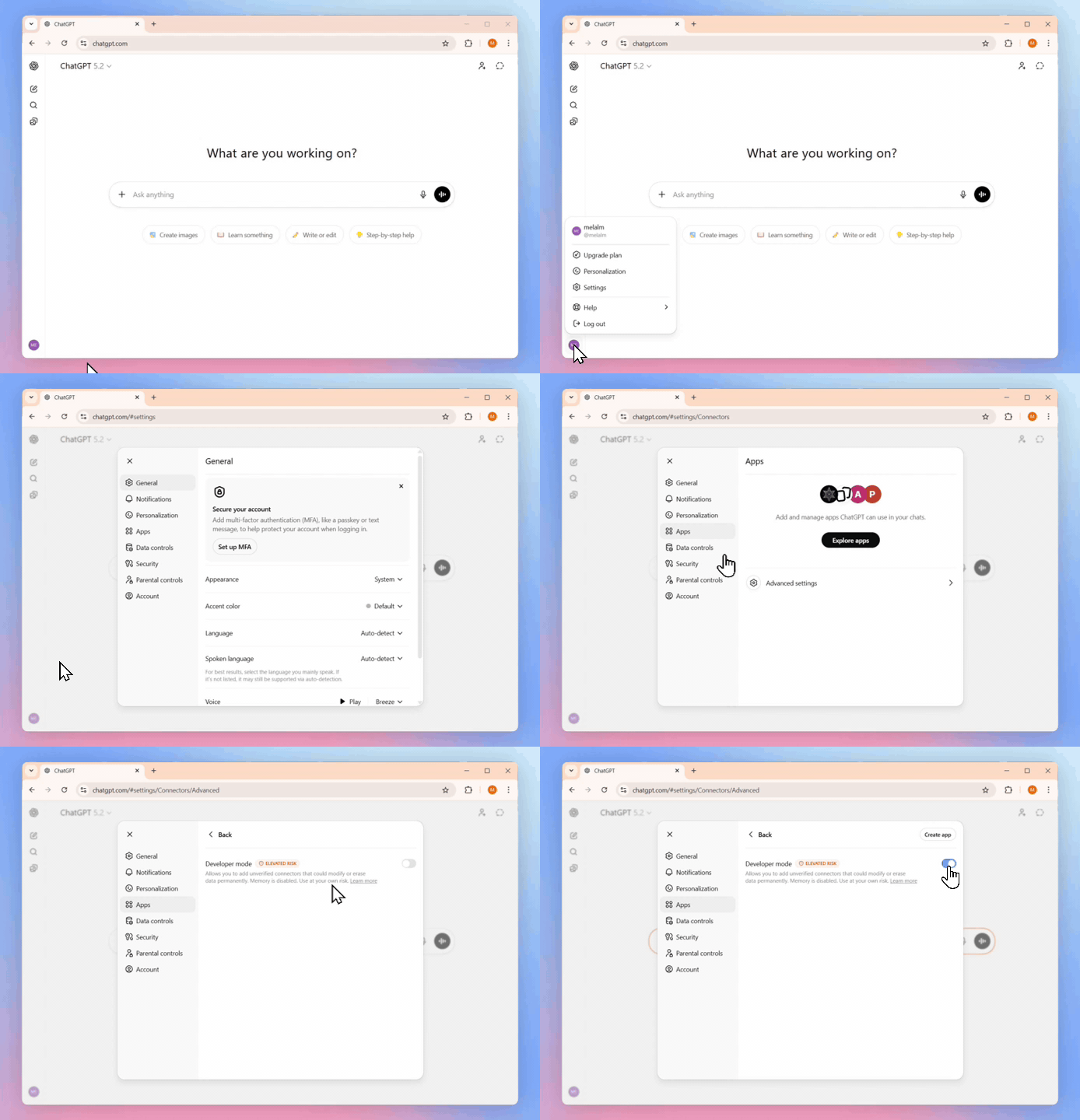
Step 1: Enable Developer Mode
- Open ChatGPT
- Click your profile icon
- Go to Settings
- Open Apps
- Navigate to Advanced Settings
- Enable Developer Mode
Step 2: Create and Connect the JDoodle AI MCP App
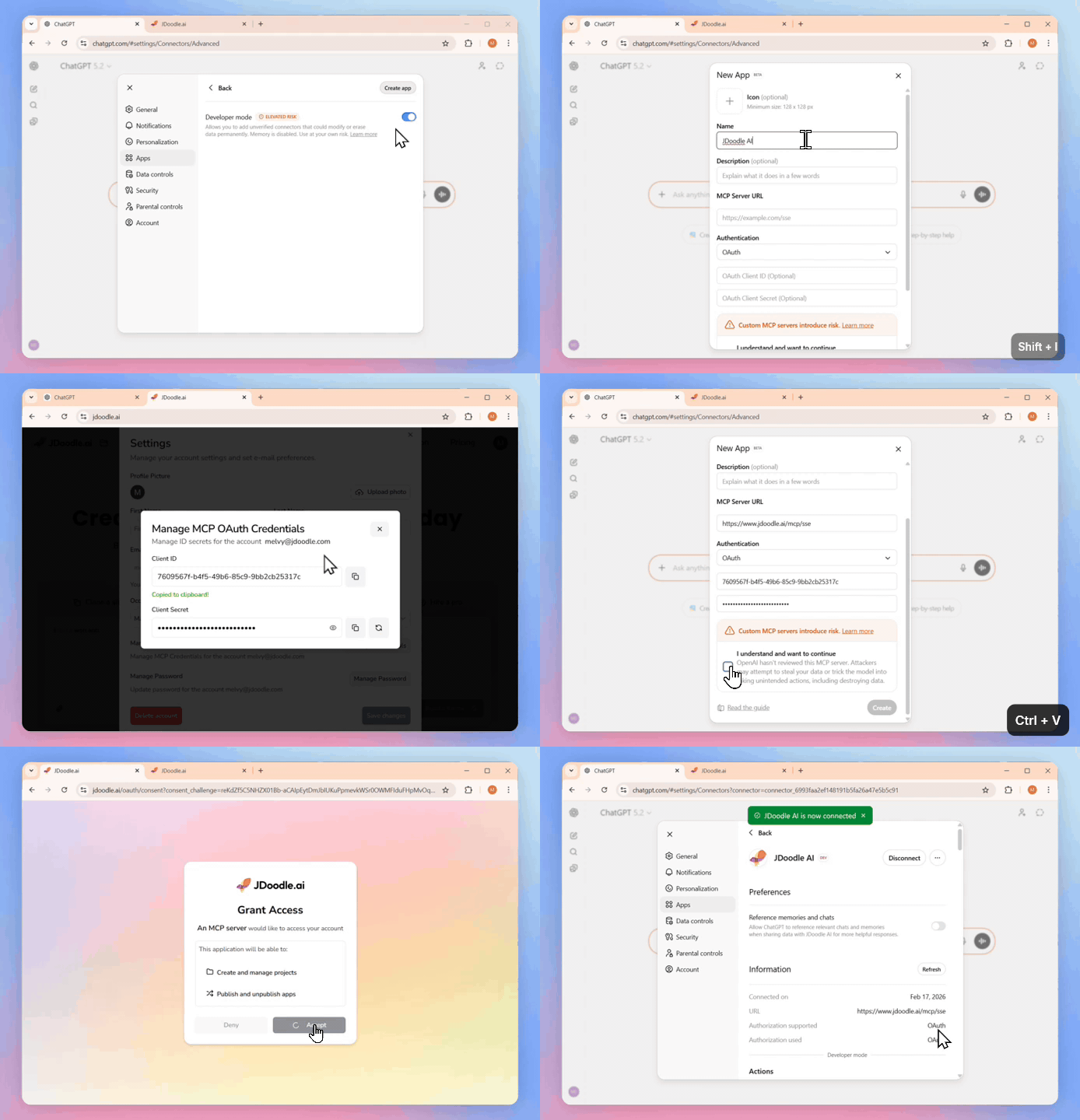
Click Create App
Enter an App Name (example:
JDoodle AI)Add the MCP Server URL: https://www.jdoodle.ai/mcp/sse
Paste your authentication credentials:
- Client ID
- Client Secret
Confirm by selecting: "I understand and want to continue."
Click Create
When JDoodle AI requests access authorization, click Accept
JDoodle AI MCP is now connected to ChatGPT.
Step 5: Start Using JDoodle AI in ChatGPT
- Open a new chat
- Type @
- Select JDoodle.ai from the list
You can now begin building.
Example:
Build a website with today’s date.Step 6: Approve File Permissions
During project generation, ChatGPT may request permission to write project files.
Select Allow or Write Files to proceed.
Step 7: Preview the Application
Once the project is created:
- Click the Preview Link
- Select Open Link
- View your app in a new browser tab
The preview link remains consistent and updates automatically as changes are made.
Continuous Updates in ChatGPT
JDoodle AI MCP supports ongoing project modifications within the same conversation.
Example prompts:
- Make the website responsive
- Add a hero section
- Change the theme to dark mode
The preview link updates automatically after each modification.
When your application is ready, you can ask ChatGPT to
Deploy this project or Publish my app.
ChatGPT will deploy the app and provide a published URL.
Connecting JDoodle AI MCP with Claude (Web and Desktop)
Claude supports JDoodle AI MCP through custom connectors. A Pro or paid plan is required.
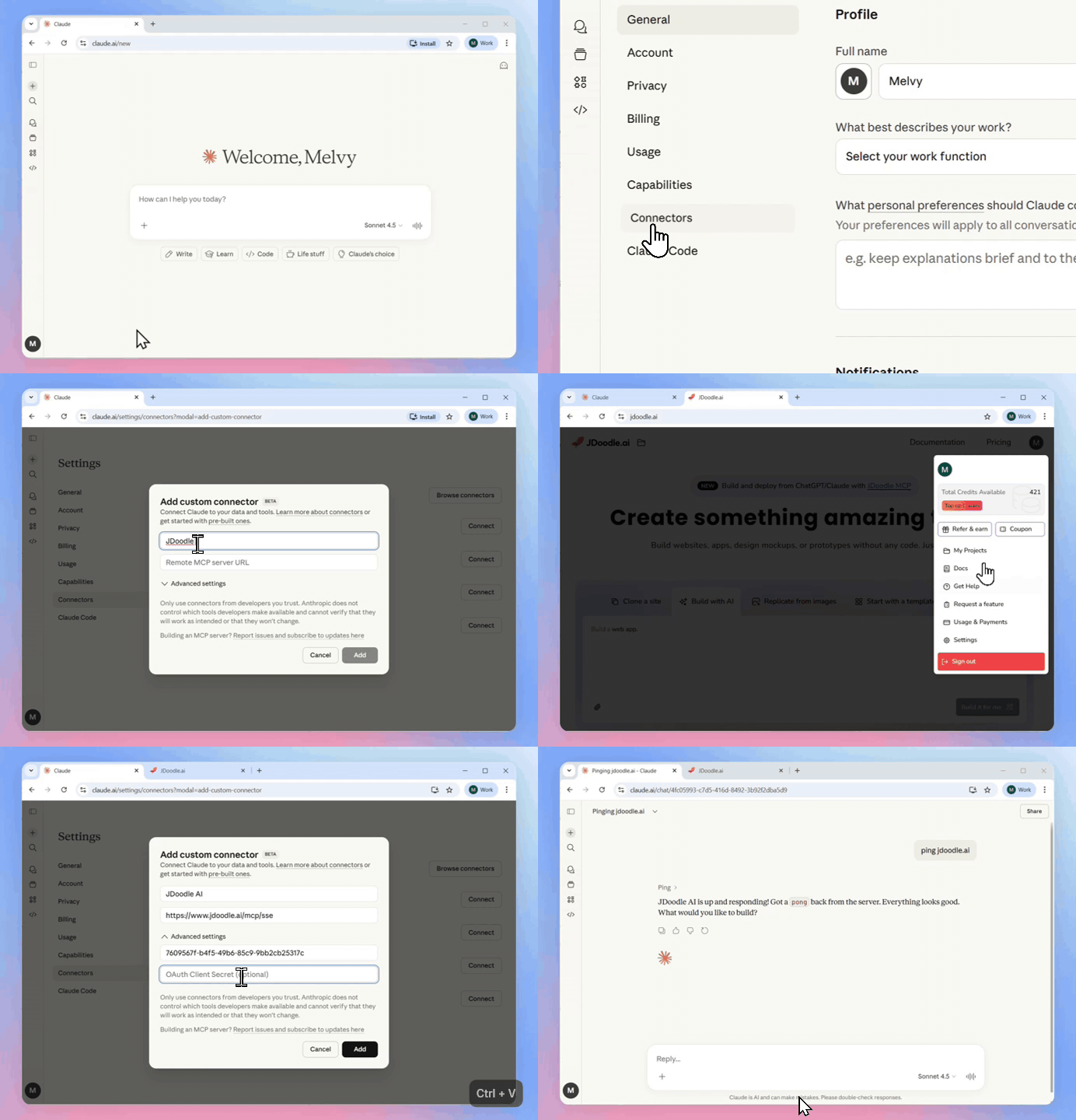
Step 1: Open Claude Settings and Add a Custom Connector
- Open Claude
- Click your profile icon
- Select Settings
- From the left sidebar, open Connectors
- Click Add Custom Connector
- Enter a connector name (example:
JDoodle AI) - Add the Remote MCP Server URL: https://jdoodle.ai/mcp/sse
Step 3: Add Authentication Credentials
- Open Advanced Settings
- Enter your Client ID
- Enter your Client Secret
- Click Add
Step 4: Connect and Authorize
- Click Connect
- Approve the access request from JDoodle AI
- Click Accept
JDoodle AI MCP is now connected to Claude.
Step 5: Enable the Connector in Chat
- Start a new chat
- Click the Plus icon
- Select Connectors
- Toggle JDoodle AI ON
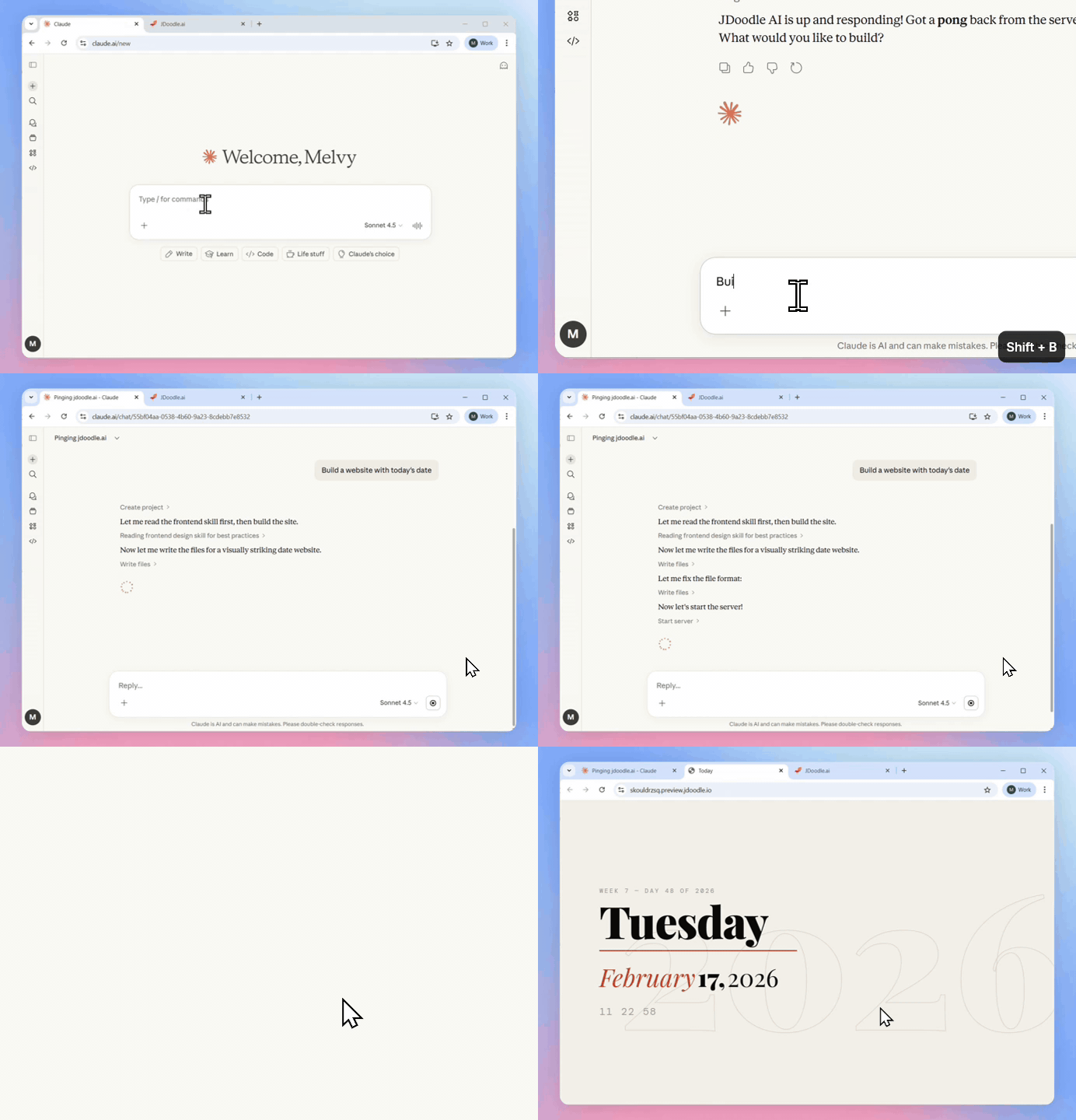
Step 6: Use JDoodle AI in Claude
Type: /jdoodle
or just type ping jdoodle.ai
Then start chatting with Claude to build your app.
Example Prompt:
Build a landing page with today’s date and a signup button.Step 7: Approve Permissions
If prompted, select Always Allow to enable seamless file creation and updates.
Step 8: Preview the Application
Claude will provide a preview link after project generation.
- Click the link
- Select Open Link
- View the application
The preview automatically updates as changes are made.
Continuous Updates in Claude
You can continue refining the project in the same chat.
Example prompts:
- Add a testimonials section
- Make the button animated
- Convert the layout to a grid
All updates reflect instantly in the preview.
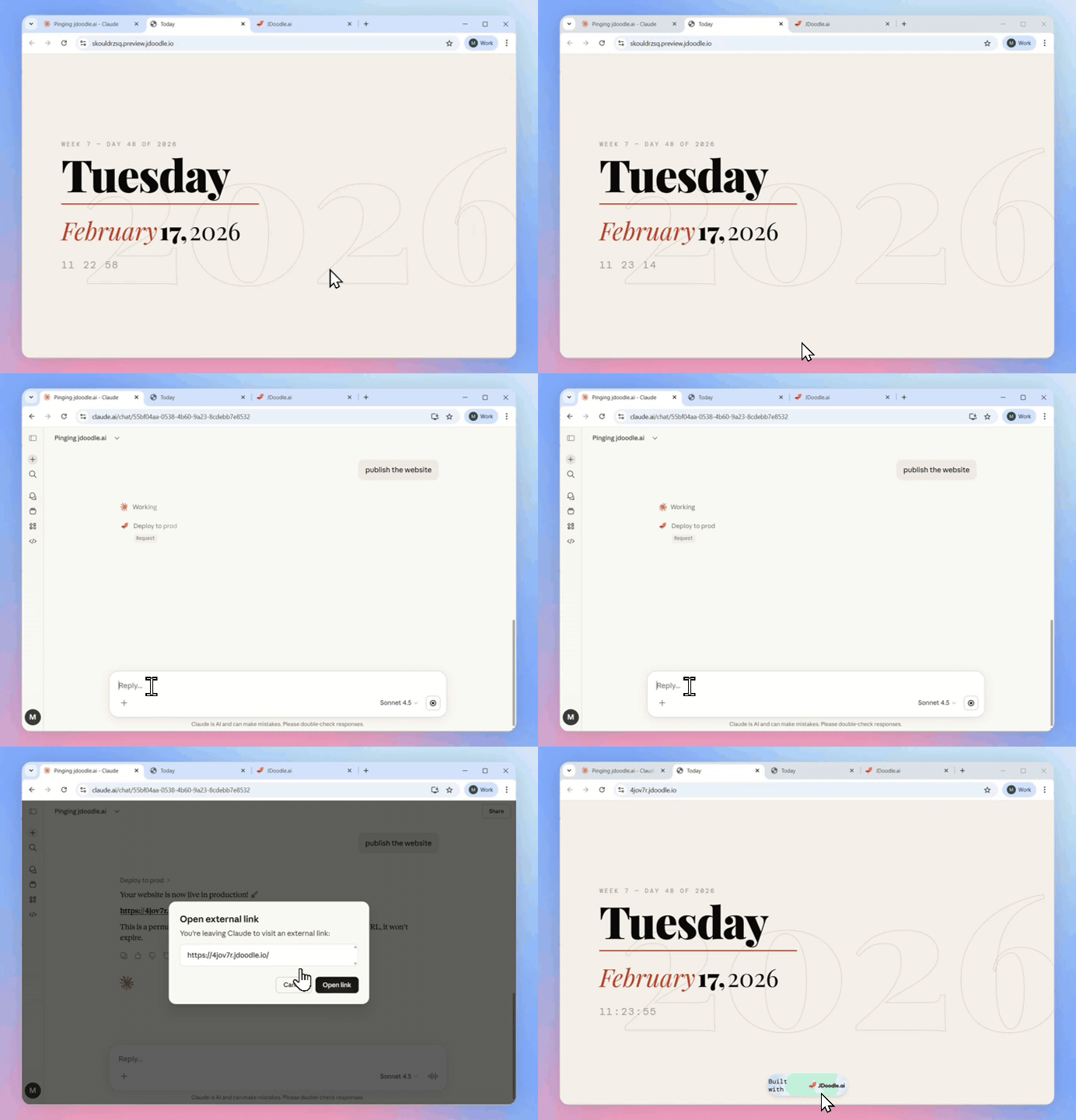
Deploying / Publishing via Claude
When your application is ready, you can ask Claude to
Deploy this project or Publish my app.
Claude will deploy the app and provide a published URL.
Why JDoodle AI MCP
Traditional AI tools generate code once and require manual management afterward.
JDoodle AI MCP provides:
- Conversational development
- Persistent project state
- Live preview environment
- Continuous updates
- Direct deployment
No external editor or export workflow is required.
Troubleshooting
Connector Not Visible in ChatGPT
- Ensure Developer Mode is enabled
- Confirm the app was successfully created
- Refresh ChatGPT
Claude Connector Not Available
- Verify you are using a Pro or paid plan
- Ensure the connector is enabled in the current chat
Authentication Errors
- Re-copy Client ID and Client Secret
- Verify credentials in JDoodle AI Settings
- Reconnect the connector
Preview Link Not Loading
- Confirm file write permissions were approved
- Retry the build prompt
- Ensure browser pop-ups are not blocked
Support
For assistance, contact: [email protected]